
Problem
You may encounter this error message when booting a protected system with a Windows Server 2012 server domain controller (on either an appliance or within Virtual Office):
| STOP: error c0002e2 Directory Services could not start |
Symptoms
In a domain controller server, after a dirty shutdown or power outage, you may face this message:
Directory Services are unable to start
with a stop code of c00002e2:

Causes
There are three potential causes of this error:
- A device attached to the system is not functioning
- The ntds (Active Directory) database is older than 6 months
- Windows Server 2012 or earlier
Potential cause #1: A device attached to the system is not functioning
STOP: c00002e2 Directory Services could not start because of the following error: A device attached to the system is not functioning.
Error Status: 0xc0000001. Please shutdown this system and reboot into Directory Services Restore Mode. Check the event log for more detailed information.
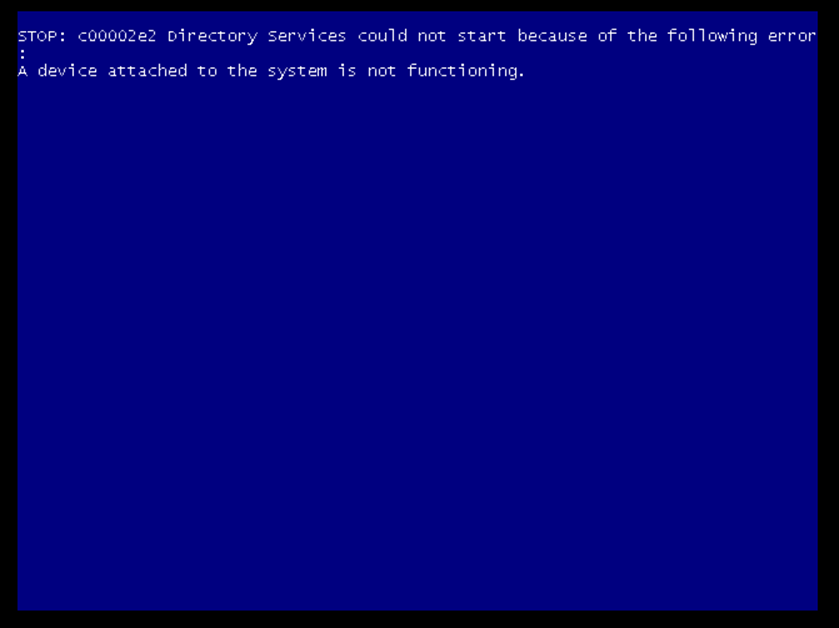
How to resolve this issue: “A device attached to the system is not functioning”
Follow the instructions below to resolve this particular c00002e2 error:
1. Restart the server and press F8 key; Select Directory Services restore mode.
2. Log in with the local administrator username and password.
3. Type: cd \windows\system32
4. Type: NTDSUTIL
5. Type: activate instance NTDS
6. Type: files
7. If you encounter an error stating that the Jet engine could not be initialized, exit out of ntdsutil.
8. Type: cd\
9. Type: md backupad
10. Type: cd \windows\ntds
11. Type: copy ntds.dit c:\backupad
12. Type: cd \windows\system32
13. Type: esentutl /g c:\windows\ntds\ntds.dit
14. This performs an integrity check. The results will indicate that the jet database is corrupt.
15. Type: esentutl /p c:\windows\ntds\ntds.dit
16. Agree with the prompt.
17. Type: cd \windows\ntds
18. Type: move *.log c:\backupad (or just delete the log files)
This should complete the repair and restore normal system functions.
Verify the repair
1. Type: cd \windows\system32
2. Type: ntdsutil
3. Type: activate instance ntds
4. Type: files
You should no longer get an error when you do this.
Type: info
The file information should now appear correctly.
If a database analysis is required:
From the NTDSUTIL command prompt:
1. Type: Semantic Database Analysis
2. Type: Go
Potential cause #2: The ntds (Active Directory) database is older than 6 months.
STOP: c00002e2 may be caused because the ntds (Active Directory) database is older than 6 months.
If you are booting a snapshot of a Windows Domain Controller that is more than 6 months old, Microsoft will prevent this machine from booting.
How to resolve this issue: “The ntds (Active Directory) database is older than 6 months.
Follow the instructions below to resolve this particular c00002e2 error:
1. Restart the server and press F8 key;
Select Directory Services restore mode.
2. Log in with the local administrator username and password.
3. Type Date <mm-dd-yy> where mm-dd-yy is the month, day, and year of the snapshot being booted
4. Reboot the system into normal boot mode. Once the system is up and running, log in as an Administrator and reset the system time to the current date and time.
Potential cause #3: Windows Server 2012 or earlier
This works for the error "STOP c0002e2 Directory services could not start: Windows Server 2012 or earlier.”
How to resolve this issue: “Windows Server 2012 or earlier.
- Configure a dummy network on eth1 to prevent the system from interacting with the real network.
- Run a live virtual machine without Virt IO, connected through the eth1 network.

- Allow the VM to fail twice, then boot into recovery mode.
- Open a Command Prompt.
- Run bcdedit /enum and check that advancedoptions is listed, whether true or false, in {globalsettings} or {default}Use bcdedit /deletevalue {default} advancedoptions (or {globalsettings} if there)
- Use bcdedit /deletevalue {default} advancedoptions to delete the entry. If the entry is located under {globalsettings}, substitute {globalsettings} for {default}
- Use the command bcdedit /set {bootmgr} displaybootmenu yes to display the boot menu for easier access
- Exit the command prompt and then choose the continue to windows option which will fail again
- Upon the next reboot, the boot menu will be displayed. Use the F8 key to select Directory Services Recovery Mode
- After entering recovery mode, set the date, reboot, and set the data again. Then shut down the VM and restart it in live mode with virtio enabled.
SUPPORT | 720-204-4500 | 800-352-0248
- Contact Axcient Support at https://partner.axcient.com/login or call 800-352-0248
- Free certification courses are available in the Axcient x360Portal under Training
- Subscribe to the Axcient Status page for status updates and scheduled maintenance
1412 | 1703