
Microsoft 365 users: How to manually select for backup
After you configure service information for a client account, you can specify the Microsoft 365 end user accounts that will be backed up. If you decide not to automatically back up Microsoft 365 end user accounts, you can manually select accounts in the Accounts page.
x360Cloud might take up to 24 hours to back up selected end user accounts. The initial back up might take up to 72 hours to complete. Future backups are automatically scheduled to run multiple times per day.
To manually select Microsoft 365 end user accounts for x360Cloud backups:
1. Click the organization's Accounts button in the left side menu. Select Microsoft 365 Users.

2. Click the filter button on the right of the screen to filter the list by Name or Email Address.
3. Click the Search button to complete the filtering process.
4. Use the Protection Status field to toggle protection on or off for each user account. User Accounts with M365 licenses will be backed up; user accounts without M365 licenses will not be backed up. 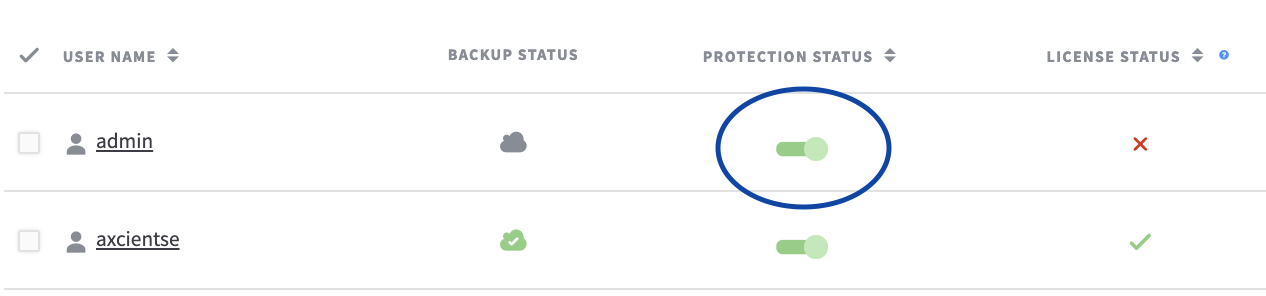
Google Workspace users: How to manually select for backup
After you configure service information for a client account, you can specify the end user accounts that will be backed up. If you decide not to automatically back up Google Workspace end user accounts, you can manually select accounts in the Accounts page.
x360Cloud might take up to 24 hours to back up selected end user accounts. The initial back up might take up to 72 hours to complete. Future backups are automatically scheduled to run multiple times per day.
To manually select Google Workspace end user accounts for x360Cloud backups:
1. Click the organization's Accounts button in the left side menu. Select G Suite Users. 
2. Click the filter button on the right of the screen to filter the list by Name or Email Address.
3. Click the Search button to complete the filtering process.
4. Use the Protection Status field to toggle protection on or off for each user account. User Accounts with Google licenses will be backed up; user accounts without Google licenses will not be backed up.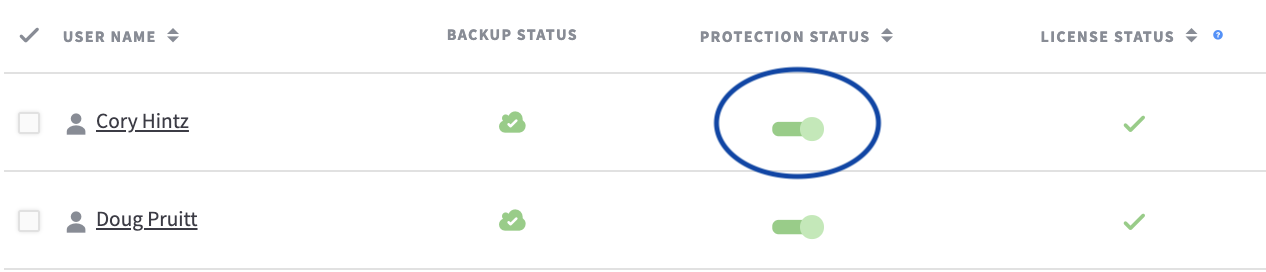
Google Workspace shared drives: How to manually select for backup
After you configure service information for a client account, you can specify the Google Workspace Shared Drives that will be backed up. If you decide not to automatically back up Shared Drives, you can manually select Shared Drives in the Accounts page.
x360Cloud might take up to 24 hours to back up selected Shared Drives. The initial back up might take up to 72 hours to complete. Future backups are automatically scheduled to run multiple times per day.
To manually select Shared Drives for x360Cloud backups:
1. Click the organization's Accounts button in the left side menu. Select Shared Drives.
2. Use the Protection Status field to toggle on or off protection for each Shared Drive. Shared Drives with Google licenses will be backed up; Shared Drives without Google licenses will not be backed up.
SharePoint sites: How to manually select for backup
Overview
After you configure service information for a client account, you can specify the SharePoint Site Collections (Document Libraries) that will be backed up.
NOTES:
- When you back up a SharePoint Site Collection, you are backing up all Document Libraries that exist in that Site Collection. Learn more about using documents and libraries in Microsoft SharePoint.
- Optionally, you can configure x360Cloud to automatically back up new SharePoint Site Collections. Learn about automatically backing up new users and sites here.
- x360Cloud might take up to 24 hours to back up selected Site Collections. The initial backup might take up to 72 hours to complete. Future backups are automatically scheduled to run multiple times per day.
SharePoint Site Collections for x360Cloud: How to manually select for backup
STEP 1: Navigate to the organization's Accounts Page
Click the organization's Accounts button in the left side menu. Select SharePoint sites.

Use the Protection Status field to toggle backup on or off for each SharePoint site.

SUPPORT | 720-204-4500 | 800-352-0248
- Contact Axcient Support at https://partner.axcient.com/login or call 800-352-0248
- Have you tried our Support chat for quick questions?
- Free certification courses are available in the Axcient x360Portal under Training
- Subscribe to Axcient Status page for updates and scheduled maintenance
1862